
On Feb. 18, the Office of the Tennessee Secretary of State (SOS) launched its new Tennessee Charity and Business Filing System (TNCaB) at https://tncab.tnsos.gov. Most business filings may now be submitted online via the new system, which replaces the 15-year-old TNBEAR system. In an email sent to the state’s business customers on March 6, Tennessee Secretary of State Tre Hargett wrote that TNCaB will provide greater functionality to both business customers and his office.
Users must create an account the first time they use TNCaB and then sign in every time they want to view or file documents. Although this is a new requirement implemented for security purposes, it also gives users access to enhanced features that were not available in the previous system.
For example, after logging in, a user can:
- View all of their filings on the “My Completed Filings” tab: After a filing is accepted, the user can access their documents. There is no need to search for old email messages with links to the documents.
- Save a draft of their filing: With the new system, there is no need to complete a filing in a single session. Draft filings are available on the “My Filings” tab for up to 14 days after they are created.
- Edit and resubmit rejected filings: Users can correct rejected filings and resubmit them rather than having to start over from scratch. A rejected filing can be edited and resubmitted for up to 14 days after it was rejected.
The SOS’s office has provided a chart illustrating in more detail the additional functionality of TNCaB as compared to the TNBEAR system.

How To Set Up an Account in TNCaB
To file documents, users must set up a personal filing account. The steps to set up an account are as follows:
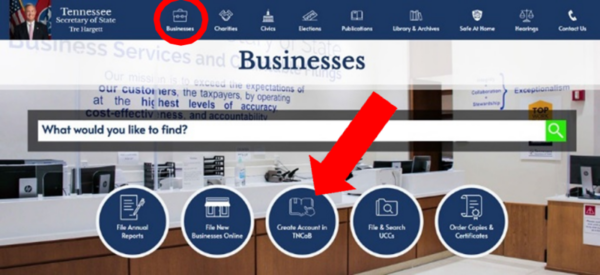
1. From http://sos.tn.gov, click on “Businesses.”
2. On the businesses page, click on the blue circle labeled “Create an Account in TNCaB“ to begin the process.
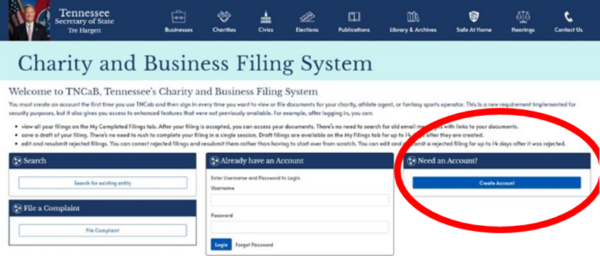
3. Click the “Create Account” button under the “Need an Account?” section.
4. Complete all required fields. The email address entered will also serve as the username. All filings will be sent to that email address. The SOS encourages users to make sure the email address chosen is valid and monitored. The SOS does not disclose these email addresses.
5. You will receive an email within a few minutes. Click the link in the email to verify and activate your account. It will take you to a page to create a password for your account. This is required to complete the account setup process.
6. On this page, you will create your unique password for your account. When you have entered your password twice, click “Save Password.”
7. If your password meets the criteria, a verification message will appear. Click on the link in the message to go to the login page.
8. Enter your username (your email address) and password and click “Login.”
The SOS’s office has also made available a printable PDF of the instructions on how to set up an account as well as instructional videos on how to set up an account and submit filings:
Printable PDF instructions: https://bit.ly/tncabsetup
Account setup video: https://youtu.be/ZkcRKeKBtFo
Submitting filings video: https://youtu.be/zXHwKrgNxgE
In addition to creating and working in accounts, users of TNCaB are also able to search for an existing entity, verify a certificate, or file a complaint about a charity. Hargett encourages users to notify him if there are elements of the old system that failed to migrate to TNCaB by sending an email to tre.hargett@tnsos.gov.
References
https://bit.ly/tncabsetup
https://tncab.tnsos.gov
This article was originally published in the March/April 2025 Tennessee CPA Journal.